



Getting Started
Getting started
Get the Warrior Notes Degree Dashboard set up and syncing student data in under ten minutes.
System Setup
Connect your Google Sheet 'Brain' to the Teachable 'Face'.
How it Works
Understand the data flow between Teachable, the Sheet, and the Dashboard.
Catalog Rules
Define your tracks, degrees, and core requirements.
Support
Get help with API errors or syncing issues.
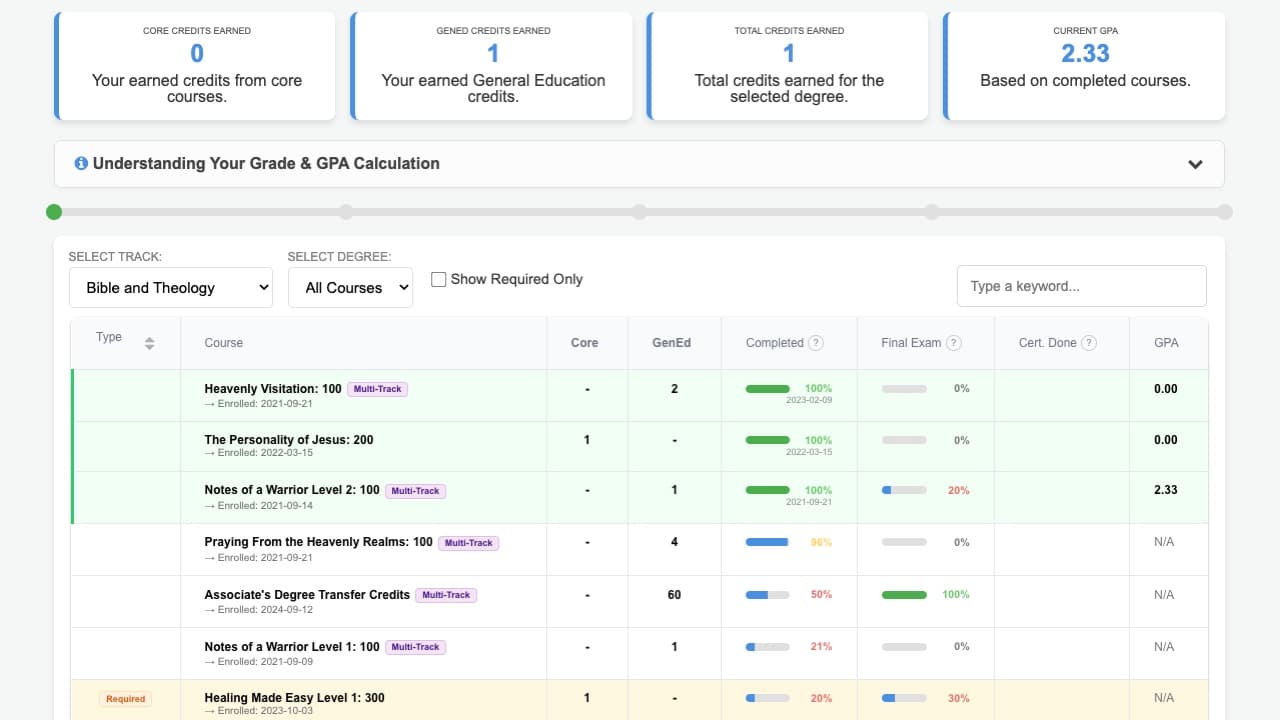
The Degree Dashboard is a dual-system architecture. The Google Sheet acts as the logic engine (calculating GPAs, credits, and requirements), while the Student Dashboard is a visual frontend that displays this data directly inside Teachable.
Quick start
To get the system running, you need to establish the connection between your administrative spreadsheet and the Teachable API.
1. The Master Sheet
The Google Sheet is the "source of truth" for all academic logic. It holds your course list, degree rules, and the processing script. You do not need to install software; you simply need to authorize the script.
// No installation required.
// The system runs entirely on Google Apps Script cloud infrastructure.
When you first open the Master Sheet, you must authorize the database script to access your Teachable account.
Authorization Required
The first time you run a command, Google will ask for permission. You must click "Advanced" > "Go to Warrior Database (Unsafe)" to allow the script to run. This is standard for custom internal tools.
2. Configuring the Logic
Before syncing students, ensure the global settings match your academic year policies in the Config tab of the Google Sheet.
Config Tab Settings:
--------------------
Grandfathering Date:  2023-01-01
Enforce Lower Core:   FALSE  (Allows grandfathering for Associates)
Enforce Higher Core:  TRUE   (Strict rules for Bachelor+)
These settings determine which students are allowed to skip "Core" requirements based on when they enrolled.
Pro Tip
Keep Enforce Higher Core set to TRUE. This ensures that even if a student is grandfathered into an Associate degree, they must still meet the strict academic standards to earn a Bachelor's or Master's.
Basic usage
Once the sheet is active, your daily workflow involves syncing student data and managing course classifications.
Processing a Student
To update a student's progress bar, you don't edit the dashboard directly. Instead, you pull their latest transcript into the Sheet.
- Navigate to Teachable > Get Student Data in the spreadsheet menu.
- Enter the Student ID (found in their Teachable user profile URL).
- The "Math Engine" will calculate their credits, apply "Grandfathering" rules, and save the result to the database.
The Student View
Students see a read-only view of the data you processed.
- Progress Bars: Visualizes progress toward the current degree target (e.g., 60/60 credits).
- Badges: "Required" badges appear automatically for courses you marked as Enforced in the sheet.
- Borrowed Credits: If a student has surplus credits from a Bachelor's, they automatically appear in the Master's bucket.
Defining Core Courses
You control the curriculum via the Data tab. To make a course mandatory, you simply add it to the list and flag it.
| Track | Degree | Course ID | Type | Enforced? |
|---|---|---|---|---|
| Theology | Bachelor | 123456 | Core | TRUE |
Setting "Enforced" to TRUE triggers the "Missing Required Credits" warning on the student dashboard if they haven't completed it, ensuring no one graduates without the essentials.
Getting help
If the dashboard isn't looking right, it's usually a data sync issue or a rule conflict.
Common Issues
"My dashboard hasn't updated." The system caches data for speed. If you just processed a student in the Sheet, wait ~1 hour or ask the student to log out and back in.
"I see a Red Row in the Sheet." This means you have created a duplicate rule (e.g., two rules for the same course on the same track). Delete one of the rows immediately to fix calculations.
Technical Support
For API outages or script errors, contact the technical lead at Purple Hippo Web Studio.
Status: All Systems Operational
Version: v2.1 (Feb 2026)